
Confirm that this is a usage-limit problem
Read the complete notice before assuming that your Codex allowance is exhausted.
A genuine usage-limit notice should normally identify a limit, allowance, credit balance, or reset time. Other messages can point to a different problem, such as:
- You are signed in to the wrong account or workspace.
- Your session needs to be authenticated again.
- The selected model or feature is temporarily unavailable.
- OpenAI is experiencing a service incident.
- An organization’s workspace budget or user limit is blocking access.
- An API key has its own billing, spending, or rate-limit problem.
Check the OpenAI status page if the message looks like a service, capacity, or availability error rather than a usage-limit notice.
Check what ran out
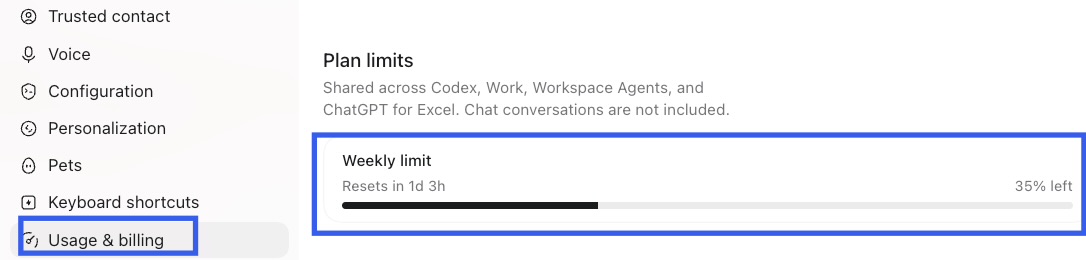
Open the Usage or Usage & billing information for the account and workspace you are currently using. Look for:
- Which allowance or usage window is exhausted
- Any remaining credit balance
- The reset time displayed for that limit
- The exact options offered by the account
- Recent usage that may explain the change
For the complete desktop walkthrough, see How to Check Codex Usage.
If you are working in an active Codex CLI session, enter /status to view the rate-limit information available there. See the official CLI command guidance where appropriate.
Do not rely on one remaining percentage by itself. Different allowances, shared usage, credits, workspace controls, or concurrent work can affect whether another Codex turn is available.
Choose the option available to your account
OpenAI may show one or more of the following options. Availability depends on the account, plan, workspace, region, and current offer.
Wait for the displayed reset
If the notice shows a reset time, you can wait until that time and try again. Use the time displayed for your own account rather than assuming that every user has the same reset schedule. See how Codex weekly limits and reset times work for help interpreting a remaining percentage or reset countdown.
Use an available reset
If your account explicitly shows an available or banked reset, review the terms shown before applying it. Reset eligibility, expiration, and the allowances affected can vary. Do not assume that a reset is available unless it appears in your account.
Add eligible credits
If Add credits is offered, eligible credits can support certain Codex usage after the included allowance has been used. Credit availability and terms vary, and ChatGPT usage credits are separate from API credits and other account balances. Check the current price, validity, and applicable features before purchasing.
Change plan
If the notice offers a plan change, review the current Codex plan guidance and decide whether the different allowance and features fit your ongoing use. Changing plan is optional and should not be presented as the default response to every limit.
Use separately billed API-key usage
OpenAI currently supports extra local Codex chats through an API key in eligible CLI, SDK, and IDE-extension workflows. This usage is billed separately at API rates and does not restore the included allowance on your ChatGPT plan. Choose this route deliberately: it uses different billing, model availability, and feature coverage, and it does not provide every cloud-based Codex capability.
What happens to unfinished work?
If a supported included allowance or credit-based limit is reached during an active turn, OpenAI says Codex can continue working on that turn, subject to fair-use limits. This is not a guarantee that every task will finish or that another turn will be available afterward.
Before leaving the task:
- Inspect the result Codex has already produced.
- Save or commit useful local changes where appropriate.
- Record what was completed and what remains unfinished.
- Keep the exact error or limit notice.
- Resume from the existing state after access returns instead of automatically repeating completed work.
Do not assume that unfinished remote work, unsaved changes, or every piece of conversation state will persist indefinitely.
Limit reached even though usage appears to remain?
A visible percentage does not always describe every allowance or condition that can affect access. Check:
- Are you viewing the same account and workspace that produced the notice?
- Which allowance or usage window does the remaining percentage describe?
- Is another allowance, workspace control, or credit balance exhausted?
- Is Codex sharing an eligible allowance or credit pool with other activity?
- Are concurrent or asynchronous tasks still consuming usage?
- Does the Usage screen show a negative, missing, or recently changed credit balance?
- What exact reset time and error text are displayed?
- Is there an incident on the OpenAI status page?
- Is the error actually related to API billing, authentication, capacity, or model availability?
If access does not return after the displayed reset time, or usage appears to have been counted incorrectly, contact OpenAI Support. Include the exact notice, time and time zone, reset information, client, model, account or workspace, and a screenshot with sensitive information removed.
Support can investigate incorrect behavior, but it does not provide routine manual resets for ordinary usage limits.
Reduce the chance of being surprised next time
Checking usage before starting a large task can help you decide whether to begin immediately, reduce the task’s scope, or preserve remaining capacity for higher-priority work.
QuoPeek keeps your Codex usage visible from the Mac menu bar while you work. It reduces the need to reopen the Usage screen repeatedly.
QuoPeek does not increase your allowance, reset limits, buy credits, or bypass OpenAI restrictions. It provides earlier and more convenient visibility into the usage information available for your account.
QuoPeek is a lightweight Mac utility for checking Codex usage without repeatedly navigating back to the Usage screen.
Download QuoPeek FreeAvailable for macOS 13 or later on Apple silicon. Pro is optional.
Frequently asked questions
What happens when I reach my Codex usage limit?
Further Codex turns may become unavailable until you use an option shown for your account or the applicable limit resets. If the limit is reached during an active turn, Codex may continue that turn subject to fair-use limits. Check Usage or the limit notice to identify the exhausted allowance and available next steps.
Can my current Codex task finish after I hit the limit?
It may. OpenAI says an active turn can continue after an included allowance or credit-based limit is reached, subject to fair-use limits. This does not guarantee that every task will finish or that you can send another turn afterward. Inspect and save useful work before leaving the task.
Can I buy more Codex usage?
Some accounts can add eligible usage credits after included usage is exhausted. Availability, prices, validity, and supported features vary. Use Add credits only if it is shown for your account. Separately billed API-key usage is a different option and does not replenish your ChatGPT plan allowance.
Why does Codex say I reached a limit when usage appears to remain?
The visible value may describe only one allowance or window. Another allowance, shared pool, workspace control, credit balance, or concurrent task may be responsible. Verify the account and workspace, read the exact notice, inspect Usage and recent activity, and check OpenAI’s service status.
Can OpenAI Support reset my Codex limit?
Not as a routine remedy. OpenAI says Support does not reset ordinary ChatGPT or Codex usage limits. Contact Support if usage appears incorrectly counted, an eligible reset was not applied as described, or access does not return after the displayed reset time.