
Check usage in Codex
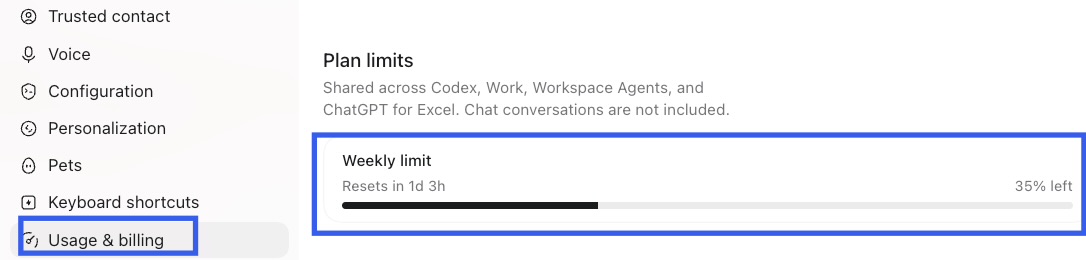
In Codex Desktop, open Settings and select Usage & billing. Under Plan limits, look for Weekly limit to see the remaining percentage and any reset information shown for your account.
The screenshot below shows the current labels. Available limits and the layout can vary by account and app version. You can also use the usage dashboard linked from OpenAI’s official usage guidance.
View full-size screenshot →
What the usage view shows
The weekly percentage tells you how much of the displayed allowance remains. Reset information, when available, tells you when that allowance is due to renew. Read the labels carefully: a percentage marked “left” is remaining capacity, not usage consumed.
Use the values shown for your own account. Limits, shared allowances and reset timing can change; this guide does not promise a particular number of messages or tasks.
When the native view is enough
If you check usage only occasionally, Codex’s native usage view may be all you need. It provides a direct place to review the information available for your account without installing another utility.
When repeated checking becomes inconvenient
If you check frequently while working, you need to reopen or revisit the usage view each time. A menu-bar display can make those quick checks more convenient without switching away from your current task.
Keep Codex usage visible with QuoPeek
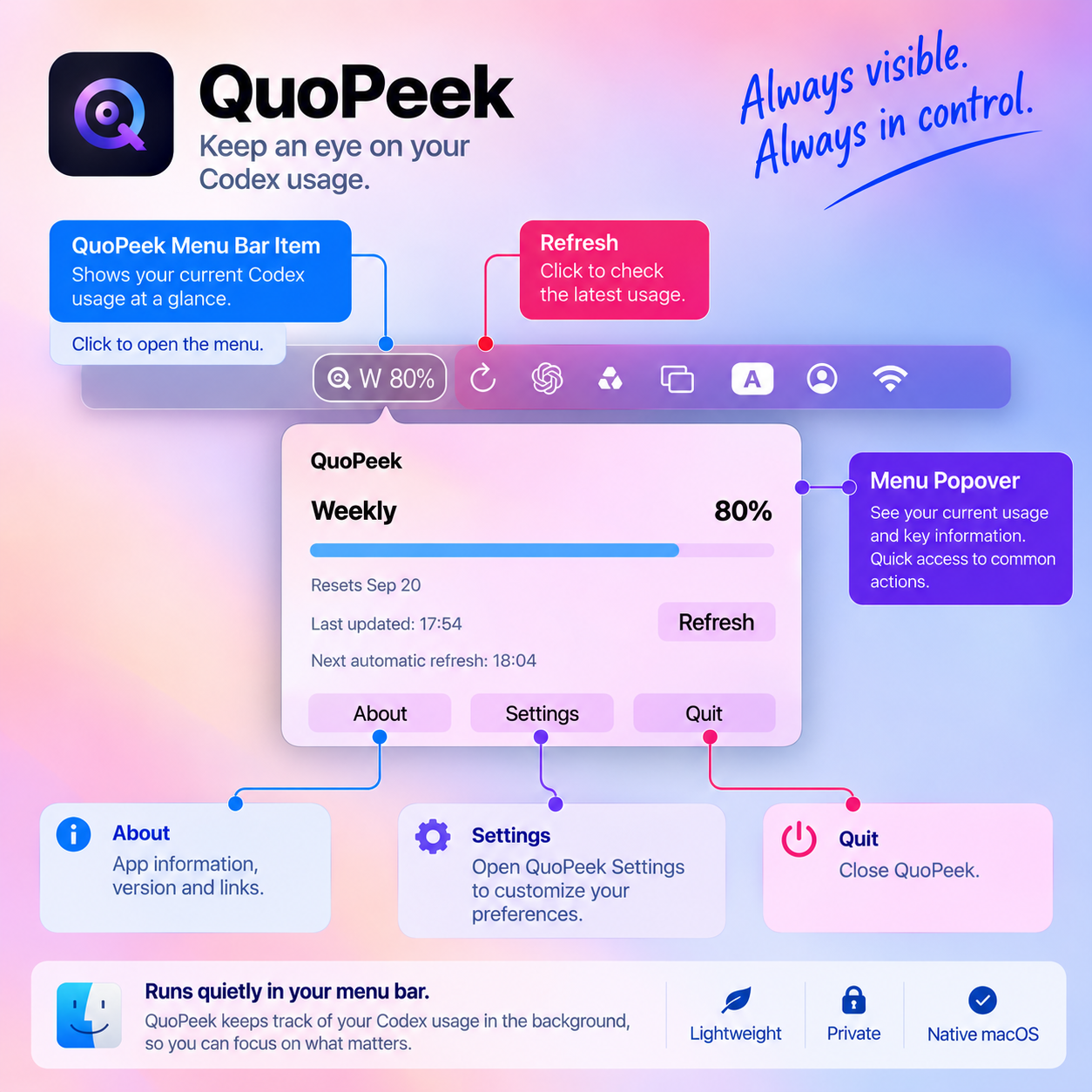
QuoPeek is an optional Mac menu-bar utility that keeps Codex usage visible at a glance. Open its popover for more information or refresh manually. The free version also supports automatic refresh at 10- or 30-minute intervals.
Automatic refresh follows the app’s safe-read conditions and may be deferred while you are interacting with your Mac. Reset timing appears only when a reliable value can be read.
View full-size screenshot →
Download QuoPeek Free
Start with menu-bar usage display, manual refresh and automatic refresh. Pro is optional.
Download QuoPeek FreeRequires an Apple silicon Mac with macOS 13 or later, Codex Desktop, and macOS Accessibility permission for visible UI reading. This is a Mac download, not an iPhone app.
Frequently asked questions
Where can I see Codex usage?
Open Settings in Codex Desktop and select Usage & billing. Review Plan limits, or follow the usage dashboard link in OpenAI’s official guidance.
How do I check my Codex weekly usage?
Look for Weekly limit under Plan limits. Read the percentage label: “left” means the remaining allowance. The information available may differ by account.
When does Codex usage reset?
Check the reset information beside the relevant limit in your account. Do not assume the example in this screenshot applies to you. If no reliable reset value is available, QuoPeek omits the reset-time field.
Can I monitor Codex usage from the Mac menu bar?
Yes. QuoPeek displays Codex usage in the menu bar on supported Macs. You can refresh manually or enable automatic refresh, subject to its safe-read conditions.